

Global Upselling: Multi-Currency and Market Display Rules
Configure BlueCart to display prices in your customers' local currencies and target specific markets with tailored campaigns.
Why Multi-Currency Matters
When customers see prices in their local currency, they can instantly understand the value without mental conversion. This small change has a significant impact:
- Increased trust — Local currency signals that you understand and serve their market
- Higher conversions — Customers are more likely to complete purchases when they see familiar currency symbols
- Reduced cart abandonment — No surprise currency conversions at checkout
If you're selling internationally through Shopify Markets, BlueCart automatically adapts to show customers prices in their local currency.
Automatic Currency Conversion
BlueCart integrates with Shopify Markets to automatically convert your progress bar amounts to the customer's local currency.
To enable automatic currency formatting:
- Open your campaign in BlueCart
- Click Configure currency to open the currency configuration page
- Enable Automatic convert goal value to user's currency
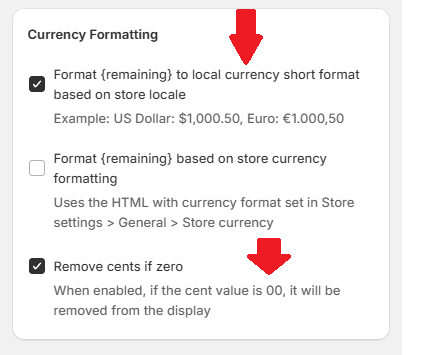
Additional formatting options are available in the campaign's Display options tab:
- Format
{remaining}to local currency short format based on store locale — Displays the remaining amount in customer's currency - Format
{remaining}based on store currency formatting — Applies your store's currency format settings - Remove cents if zero — Shows $50 instead of $50.00 for cleaner display, while preserving thousands separators in comma-decimal formats such as COP
Once enabled, a customer in Germany will see "Spend €15 more for free shipping" instead of "$17.50 more" — using their local currency and format.
BlueCart supports 30+ currencies including USD, EUR, CAD, AUD, GBP, JPY, and many more.
Currency conversion uses your Shopify Markets exchange rates. Make sure your Shopify Markets are configured correctly for accurate conversions.
Setting Location-Based Goals
Different markets often have different economics. Shipping costs vary, purchasing power differs, and customer expectations change by region. BlueCart lets you set different goal values for different countries.
Why use location-based goals:
- Shipping to Europe might cost more than domestic shipping
- A $50 free shipping threshold might be too high for some markets
- You might want to offer different incentives to different regions
To set country-specific goal values:
- Open your campaign and click Configure currency
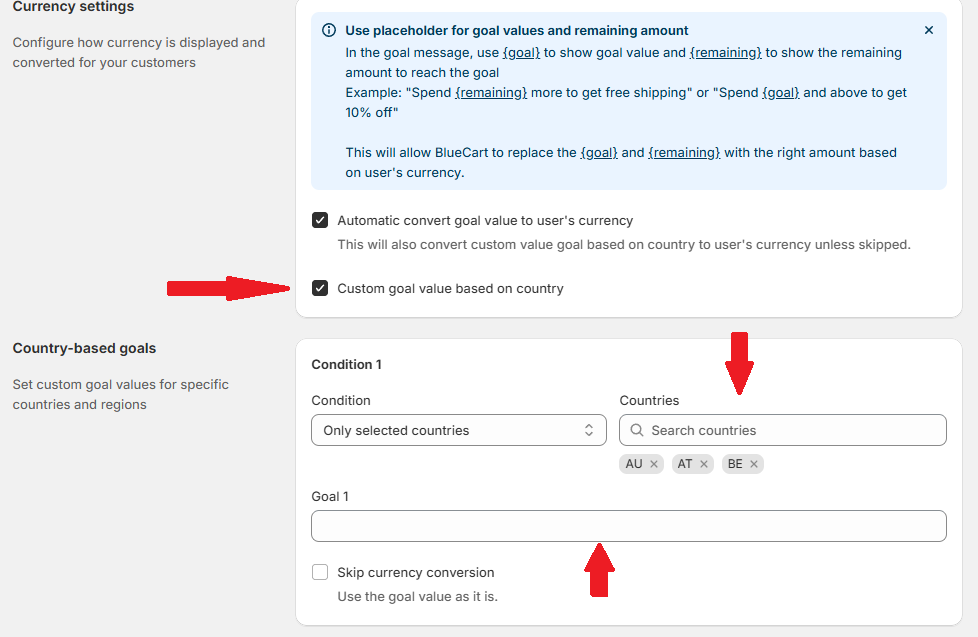
- On the Currency Settings page, you'll see two options:
- Automatic convert goal value to user's currency — Auto-converts based on exchange rates
- Custom goal value based on country — Set specific values per country
- Enable Custom goal value based on country
- In the Country-based goals section that appears:
- Click Add condition to create a rule
- Choose Only selected countries or All countries except
- Select the countries for this rule
- Enter goal values for each milestone (up to 8 goals)
- Optionally check Skip currency conversion if you don't want auto-conversion for this rule
- Add multiple rules for different regions:
- United States: $50
- Canada: $60 CAD
- Germany, France, Italy: €45
- United Kingdom: £40
BlueCart supports 30+ countries including US, CA, GB, AU, DE, FR, IT, ES, NL, JP, and more.
Customers will automatically see the goal value configured for their country. If no country-specific value is set, they'll see your default goal value, which will be auto-converted if that option is enabled.
Market Display Rules
Sometimes you want to show different campaigns to different markets, or hide progress bars entirely in certain regions. BlueCart's display conditions let you target specific Shopify Markets.
Use cases for market display rules:
- Show a free shipping campaign only in countries where you offer free shipping
- Display different campaigns for wholesale vs. retail markets
- Hide progress bars in markets where you're testing other promotions
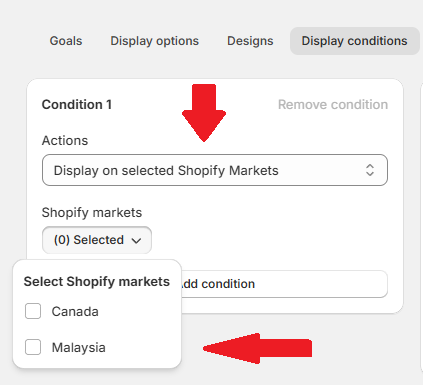
To configure market display conditions:
- Open your campaign and navigate to Display Conditions
- Click Add Condition
- Select Display on selected Shopify Markets as the condition type
- Choose which markets should see this campaign
Other Powerful Display Conditions
BlueCart offers many targeting options you can combine:
| Condition Type | Description |
|---|---|
| Active dates | Show only during specific date/time ranges |
| Cart value | Show/hide based on cart total (before or after discounts) |
| Customer status | Target signed-in customers or those with specific tags |
| Products in cart | Show/hide when specific products are in cart |
| Collections in cart | Target customers with items from specific collections |
| Product tags/types | Target by product attributes |
| Subscription items | Show/hide for subscription (selling plan) items |
| UTM parameters | Target customers from specific marketing campaigns |
| Discount codes | Hide when discount codes are applied |
You can add multiple conditions to create precise targeting rules for each campaign.
Best Practices
- Name
Account for shipping costs- Description
Set your free shipping threshold above your average shipping cost for each region. A $50 threshold doesn't help if shipping to that country costs $60.
- Name
Research local expectations- Description
Free shipping thresholds vary by market. What's reasonable in the US might be too high or too low in other countries.
- Name
Use round numbers- Description
$50, €50, £40 are easier for customers to remember and work toward than $47.83 or €43.21.
- Name
Test with different currencies- Description
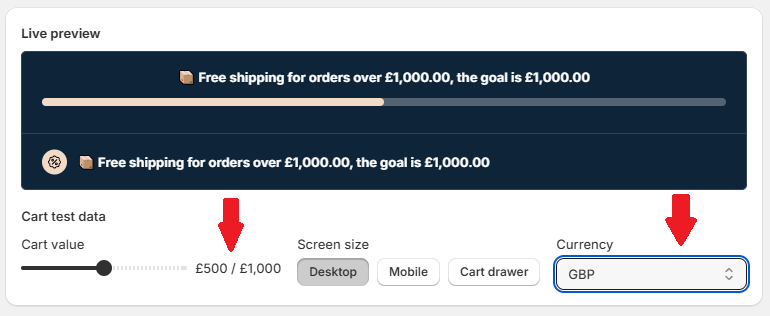
Preview your store as a customer from different countries to ensure messages display correctly and make sense.
- Name
Consider purchasing power- Description
A $100 threshold might be reasonable in the US but could be too high for markets with lower average order values.
- Name
Monitor performance by market- Description
Track your conversion rates and average order value by country to optimize thresholds for each market.
Example Multi-Currency Configuration
| Market | Free Shipping Threshold | Reasoning |
|---|---|---|
| United States | $50 | Domestic shipping is affordable |
| Canada | $75 CAD | Higher shipping costs to Canada |
| European Union | €60 | Balanced for EU shipping zones |
| United Kingdom | £45 | Post-Brexit shipping considerations |
| Australia | $80 AUD | International shipping costs |
Related Guides
Need More Help?
Have questions about configuring multi-currency or Shopify Markets integration? Our support team can help.