

Shopify product specification tables for technical catalogs
Reviewed 2 October 2026 · By Activory
Quick answer
TableFlow displays Shopify product specifications in a structured table using product and variant metafields. Use product-level values for details shared across the product, and variant-level values for details that change with the selected option. Reuse a layout across a product family, control where it appears and configure empty rows so shoppers see useful information.
Put the details that decide the purchase together
Technical buyers need specific answers: dimensions, materials, power requirements, capacity and model differences. A consistent specification table gives those answers a predictable place beside the product.
Start with the questions customers ask before choosing an item. Keep each label short, include measurement units and put the most useful attributes first. Descriptive copy can explain the product’s benefits while the table handles precise values.
Use one layout across a product family
A lighting range might use the same labels for housing material, length, power and light output, while the values differ for each product. Define the shared structure once, then connect its rows to the relevant metafields.
Use display conditions to show the table on the intended products. TableFlow supports conditions based on product tags, vendor or product type. Keep those catalog labels consistent so a change to product tagging does not accidentally show or hide the wrong table.
Show the specification for the selected variant
Put a value on the product when it applies to every option. Put it on the variant when the buyer’s selection changes the answer. That distinction matters when two lengths of the same light have different wattage or output.
For example, a fictional linear-light family could use this field plan:
| Specification | Data scope | Short variant | Long variant |
|---|---|---|---|
| Housing material | Product metafield | Aluminium | Aluminium |
| Length | Variant metafield | 600 mm | 1200 mm |
| Power | Variant metafield | 12 W | 24 W |
| Light output | Variant metafield | 1200 lm | 2400 lm |
| Dimming method | Product metafield | DALI | DALI |
These values are teaching data, not specifications for a real product. Follow the variant specification guide to select the correct data source, then switch between options in your theme and compare every displayed value with Shopify.
Illustrated specification workflow
Fictional teaching data. This illustration explains data scope and missing values; it is not a TableFlow theme integration or a merchant-store test.
| Specification | Sample value |
|---|---|
| Housing material | Aluminium |
| Length | 600 mm |
| Power | 12 W |
| Light output | 1200 lm |
| Dimming method | DALI |
| Included spare lamps | 0 |
| Battery powered | No (false) |
Missing rows are omitted here. Zero spare lamps and a false battery value remain visible. Verify these cases in the configured TableFlow block and your theme before publishing product specifications.
Handle missing values deliberately
A missing value should not look like a broken specification table. TableFlow’s documented empty-value setting can hide empty rows and tables when the Empty value placeholder is left blank. If you choose a placeholder, give it a meaning shoppers can understand.
Keep missing information distinct from a real zero, a false value or “not applicable”. For safety, compatibility or other purchase-critical details, decide whether the product needs better data before it should be sold rather than simply hiding the unanswered question. See the empty rows guide.
Build a repeatable specification setup
-
Choose one product family and agree on the labels, units and source of truth.
-
Create or check the Shopify metafield definitions. Separate product-wide facts from variant-specific facts.
-
Build the table layout and connect the required rows to their data sources using the metafield guide.
-
Set the family’s display conditions and your empty-value behavior.
-
Place the table in the product template, then test multiple products, variant changes, missing values and the phone layout before extending it to the rest of the family.
Choose the layout that matches the question
Use this product-specific table when someone is deciding whether the item in front of them meets their requirements. For a table focused on the selected option, see variant specification tables. If buyers need several products side by side, see product comparison tables. If their first task is searching a catalog by SKU or part number, see Table Master part-number search.
Try the TableFlow storefront example
This existing lighting tutorial uses TableFlow storefront code with fictional sample data. It is a replaceable-bulb fixture, separate from the linear-light illustration above. Try variant changes, the second sample product, the empty product and Phone width. It does not verify your store's theme or real technical data.
The first product option shows all six specification rows.
Hide empty fields in your store
In the theme editor, open the TableFlow app embed and leave Empty value placeholder blank. These are sample products.
Follow the lighting specification setup tutorial for the exact field settings and source values used in that example.
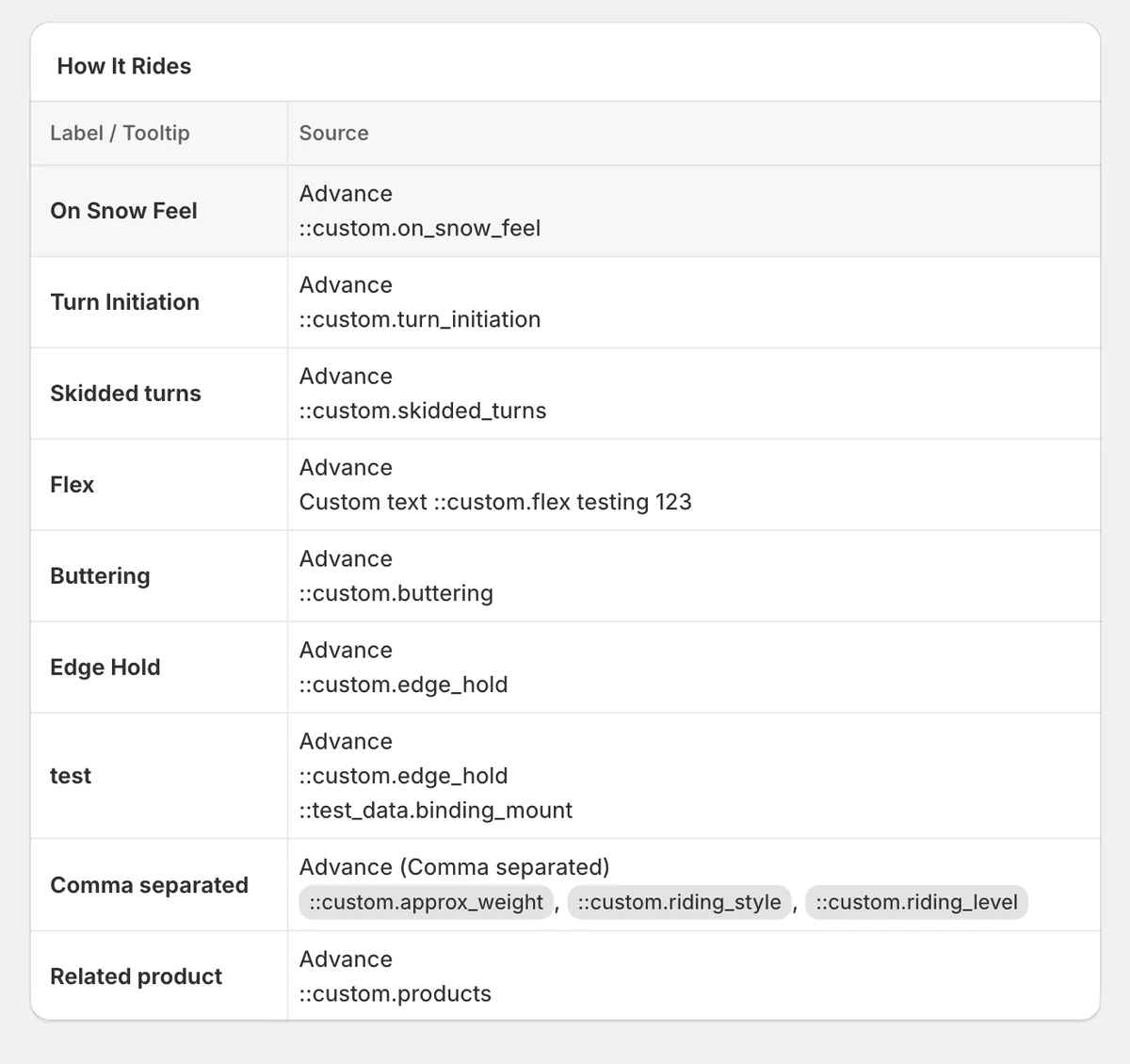
Editor preview: connect each specification label to the intended data source. This image is not a test of the fictional linear-light family.
Common setup mistakes
Keep units and data scope explicit. An empty value, zero, false and not applicable need different meanings. Test included and excluded products, initial variant values, rapid variant changes and any custom variant selector before publishing the table in your theme.
Frequently asked questions
Should I use product metafields or variant metafields?
Use product metafields for facts shared across the item. Use variant metafields when length, capacity, power or another specification changes with the selected option. Check the source and the displayed value for every variant used in the demonstration.
Can I use the same specification layout on many products?
Yes. A shared metafield-backed structure can display the values belonging to each product. Use TableFlow display conditions to target the intended family and keep its tags, vendor or product type consistent.
Can TableFlow hide empty specification rows?
The documented setup hides empty rows and tables when the Empty value placeholder is blank. Configure that behavior and test an empty row, a completely empty table and genuine zero or false values in the relevant theme.
Will the table update when a shopper changes a variant?
TableFlow documents automatic updates for variant-based specifications. The selected variant must have the right values and the row must use the correct source. Verify the first loaded option, subsequent changes and any custom variant selector in your theme.
Can TableFlow create missing technical data for my products?
The table displays the data you configure. Your catalog team remains responsible for accurate specifications, units and compatibility information. Fill or intentionally classify important missing data before relying on it in a buying decision.
Start with one technical product family
Choose two products that share the same specification labels and have different values. Build the layout, test the variants and missing rows, then reuse the verified setup.
Start with one technical product family
Build a layout from checked product and variant data, then test your theme before extending it to the family.